Conversational Forms
Create AI-powered conversational forms that collect data through natural language dialogue instead of traditional form fields.
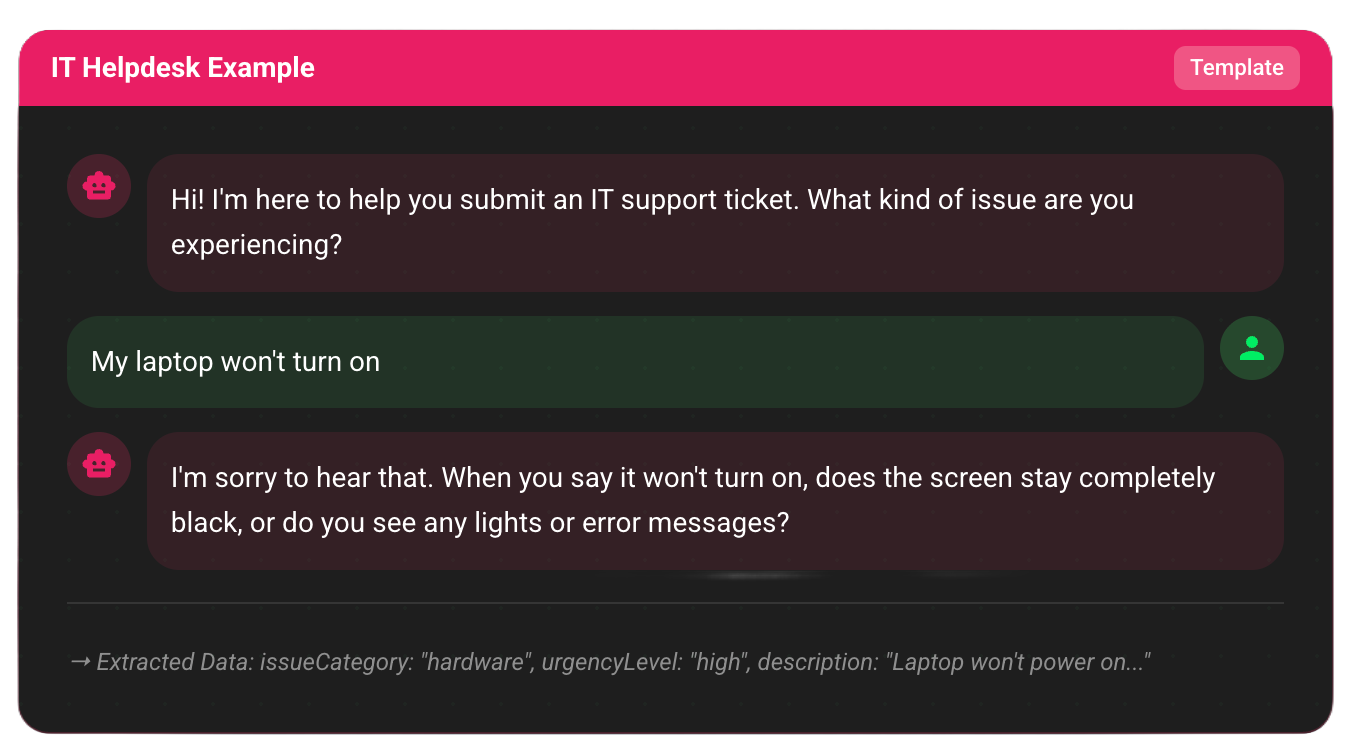
Example: An IT Helpdesk conversational form collecting issue details through natural dialogue. The AI extracts structured data (issue category, urgency level, description) from the conversation in real-time.
Creating a Conversational Form
Step 1: Choose Form Type
When creating a new form, select "Conversational" as the form type:
- Click "New Form" from the dashboard
- Select "Conversational Form" option
- Choose a template or start from scratch
Step 2: Configure Basic Settings
Set up the basic form information:
- Form Name: Descriptive name for your form
- Description: What this form is used for
- Objective: What you want to accomplish (e.g., "Collect IT support ticket information")
- Context: Business context and background information
Step 3: Define Topics
Topics are the areas of information you want to collect. For each topic:
- Topic ID: Unique identifier
- Name: Display name
- Description: What information to collect
- Priority: Required, Important, or Optional
- Depth: Surface, Moderate, or Deep questioning
Example Topics (IT Helpdesk):
1. Issue Description
   - Priority: Required
   - Depth: Deep
   - Description: Detailed description of the technical issue

2. Urgency Level
   - Priority: Required
   - Depth: Surface
   - Description: How urgent is this issue?

3. Device Information
   - Priority: Important
   - Depth: Moderate
   - Description: Make, model, and specifications

4. User Contact
   - Priority: Required
   - Depth: Surface
   - Description: Email or employee ID
Step 4: Configure AI Persona
Customize how the AI interacts with users:
Persona Style:
- Professional: Formal, business-appropriate
- Friendly: Warm, approachable
- Casual: Relaxed, conversational
- Empathetic: Supportive, understanding
Tone: Custom tone description (e.g., "Helpful and patient")
Behaviors: List of behaviors (e.g., "Ask one question at a time", "Provide reassurance")
Restrictions: What the AI should not do (e.g., "Don't make technical diagnoses")
Step 5: Set Conversation Limits
Configure conversation boundaries:
- Max Turns: Maximum number of conversation exchanges (e.g., 15)
- Max Duration: Maximum conversation time in minutes (e.g., 10)
- Min Confidence: Minimum confidence threshold for extracted data (0-1, e.g., 0.8)
Step 6: Define Extraction Schema
Specify what structured data to extract from the conversation:
{
  "issueCategory": {
    "type": "select",
    "required": true,
    "options": ["hardware", "software", "network", "other"]
  },
  "urgencyLevel": {
    "type": "select",
    "required": true,
    "options": ["low", "medium", "high", "critical"]
  },
  "description": {
    "type": "textarea",
    "required": true,
    "minLength": 10
  },
  "userEmail": {
    "type": "email",
    "required": true
  },
  "deviceInfo": {
    "type": "text",
    "required": false
  }
}
Step 7: Configure Storage
Set up where to store the extracted data:
- MongoDB Connection: Select from connection vault
- Database: Target database
- Collection: Target collection
- Document Structure: How to structure the saved document
Conversation transcripts are stored differently depending on your deployment mode:
- Cloud/Self-Hosted: Transcripts stored at
_formMetadata.conversational - Standalone: Transcripts stored at root level
conversational
See Deployment Modes for complete document structure details.
Form Configuration
Objective
A clear statement of what the form should accomplish:
"Collect IT support ticket information including issue description,
urgency level, device information, and user contact details."
Context
Background information that helps the AI understand the business context:
"We're an IT support team for a 500-person company. We handle
hardware issues, software problems, network connectivity, and
account access requests. Our team responds within 2 hours for
high-priority issues."
Topics Configuration
Each topic includes:
- ID: Unique identifier (e.g., "issue-description")
- Name: Display name (e.g., "Issue Description")
- Description: What to collect (e.g., "Detailed description of the technical problem")
- Priority:
required: Must be collectedimportant: Should be collected if possibleoptional: Collect if relevant
- Depth:
surface: Basic information onlymoderate: Some detail expecteddeep: Comprehensive information
Persona Configuration
{
  "style": "professional",
  "tone": "Helpful and patient, but efficient",
  "behaviors": [
    "Ask one question at a time",
    "Provide reassurance when appropriate",
    "Clarify technical terms if needed"
  ],
  "restrictions": [
    "Don't make technical diagnoses",
    "Don't promise specific resolution times",
    "Don't ask for passwords or sensitive credentials"
  ]
}
Conversation Limits
{
  "maxTurns": 15,        // Maximum conversation exchanges
  "maxDuration": 10,     // Minutes
  "minConfidence": 0.8   // 0-1 threshold
}
Extraction Schema
Define the structured data fields to extract:
[
  {
    "id": "issueCategory",
    "name": "Issue Category",
    "type": "select",
    "required": true,
    "options": ["hardware", "software", "network", "other"],
    "validation": {
      "required": true
    }
  },
  {
    "id": "urgencyLevel",
    "name": "Urgency Level",
    "type": "select",
    "required": true,
    "options": ["low", "medium", "high", "critical"]
  },
  {
    "id": "description",
    "name": "Description",
    "type": "textarea",
    "required": true,
    "validation": {
      "minLength": 10,
      "maxLength": 1000
    }
  },
  {
    "id": "userEmail",
    "name": "User Email",
    "type": "email",
    "required": true
  }
]
Advanced Configuration
Custom Prompts
For advanced control, you can customize prompt templates:
{
  "greeting": "Hi! I'm here to help you submit an IT support ticket. What kind of issue are you experiencing?",
  "followUp": "Can you tell me more about {topic}?",
  "clarification": "I want to make sure I understand correctly. {question}",
  "confirmation": "Great! I've collected: {summary}. Is there anything else?",
  "completion": "Thank you! Your ticket has been submitted. Ticket ID: {ticketId}"
}
Confidence Scoring
Each extracted field receives a confidence score (0-1):
- High (0.8-1.0): Very confident in the extracted value
- Medium (0.5-0.8): Moderately confident, may need verification
- Low (<0.5): Low confidence, should ask for clarification
Configure minimum confidence thresholds per field.
Topic Dependencies
Define relationships between topics:
{
  "deviceInfo": {
    "dependsOn": ["issueCategory"],
    "condition": "issueCategory === 'hardware'"
  }
}
Testing Your Conversational Form
Test Mode
Use test mode to try your form:
- Click "Test Form" in the form builder
- Start a conversation
- Review how the AI responds
- Check extracted data
- Adjust configuration as needed
Preview
Preview the form as users will see it:
- Click "Preview" in the form builder
- Interact with the AI
- Test different conversation paths
- Verify data extraction
Publishing
Once configured, publish your conversational form:
- Click "Publish"
- Get a shareable URL
- Share with users
- Monitor conversations and extracted data
Monitoring & Analytics
Track conversational form performance:
- Total Conversations: Number of conversations started
- Completion Rate: Percentage completed
- Average Turns: Average conversation length
- Confidence Scores: Average confidence per field
- Topic Coverage: Which topics are covered most
- Extraction Success: Percentage of successful extractions
Best Practices
- Clear Objective: Write a clear, specific objective
- Relevant Topics: Focus on essential topics
- Appropriate Depth: Match depth to information needs
- Test Thoroughly: Test various conversation paths
- Monitor Performance: Review analytics regularly
- Iterate: Improve based on real conversations
Next Steps
- Template Management - Use built-in templates
- AI Agents - Explore AI capabilities
- Configuration - Advanced configuration options