Workflow Templates
NetPad provides pre-built workflow templates for common use cases. Use templates as starting points for your workflows. Templates are accessible through the Template Gallery when creating a new workflow.
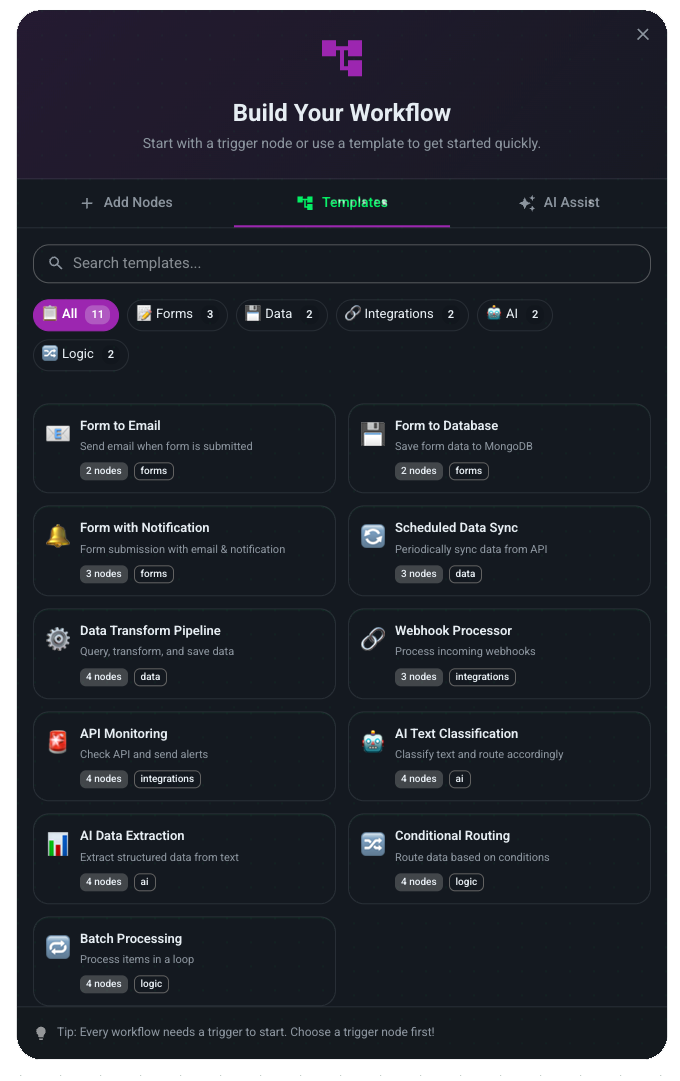
Accessing Workflow Templates
The Workflow Template Gallery is available when creating a new workflow:
- Navigate to Workflows - Click "New Workflow" from the dashboard
- Open Template Gallery - Click the "Templates" tab in the workflow creation dialog
- Browse Templates - Explore templates by category
The Template Gallery is also accessible from the Empty Workflow State when you first open the Workflow Editor without an existing workflow.
Template Categories
Workflow templates are organized into categories:
Form Processing
Templates for processing form submissions:
- Form to Email - Send email notifications when forms are submitted
- Form to Database - Save form submissions to MongoDB collections
- Form Validation - Validate and enrich form data before saving
- Submission Routing - Route submissions based on conditions
Data Processing
Templates for data operations and synchronization:
- Scheduled Sync - Sync data between collections on a schedule
- Data Pipeline - Transform and process data through multiple steps
- Bulk Operations - Perform bulk updates or transformations
- Data Cleanup - Clean and normalize data automatically
Integrations
Templates for external system integration:
- Webhook Processor - Process incoming webhook data
- API Monitoring - Monitor external APIs and trigger actions
- Database Sync - Sync with external databases
- Service Integration - Connect to third-party services
AI Workflows
Templates leveraging AI capabilities:
- Text Classification - Classify text using AI
- Data Extraction - Extract structured data from unstructured text
- Content Generation - Generate content using AI
- Sentiment Analysis - Analyze sentiment of text data
Logic
Templates for conditional routing and logic:
- Conditional Routing - Route data based on conditions
- Batch Processing - Process data in batches
- Parallel Execution - Execute multiple operations in parallel
- Error Handling - Handle errors and retries
Previewing Workflow Templates
Before using a template, you can preview it to see what it includes:
Opening Preview
- Click Template Card - Click on any workflow template card
- Preview Dialog Opens - See detailed template information
Preview Information
The preview shows:
Template Details
- Name - Full template name
- Description - Detailed description of use case
- Category - Template category
- Icon - Visual identifier
Template Metadata
- Complexity Level - Simple, Moderate, or Advanced
- Estimated Setup Time - How long to customize
- Node Count - Number of nodes included
Node and Edge List
- All Nodes - Complete list of nodes in the template
- Node Types - What type each node is
- Node Labels - How nodes are labeled
- Edges - Connections between nodes
- Data Flow - How data flows through the workflow
Preview Actions
From the preview dialog, you can:
- Use Template - Apply template as-is and start customizing
- Close - Return to template gallery
Using Workflow Templates
Applying a Template
- Click "Use Template" - In the template preview dialog
- Name Your Workflow - Enter a name for your workflow
- Workflow Editor Opens - Template nodes and edges are loaded
- Start Customizing - Modify nodes, add/remove as needed
Available Templates
Form Processing Templates
Email Confirmation
Send confirmation email after form submission.
Configuration:
- Form: Your form
- Email To: Form submitter email
- Email Subject: "Thank you for your submission"
- Email Body: Include form data
Team Notification
Notify team members of new form submissions.
Configuration:
- Form: Your form
- Email To: Team email addresses
- Slack Channel: Team channel
Data Validation
Validate and enrich form data before saving.
Data Synchronization Templates
Sync Collections
Sync data between MongoDB collections.
Nodes:
- Schedule Trigger (or Form Trigger)
- MongoDB Query (source collection)
- Transform (map fields)
- MongoDB Write (target collection)
Update Related Records
Update related documents when data changes.
Nodes:
- Form Trigger
- MongoDB Query (find related)
- Transform (update data)
- MongoDB Write (update related)
Integration Templates
Webhook to MongoDB
Save webhook data to MongoDB.
Nodes:
- Webhook Trigger
- Transform (format data)
- MongoDB Write
API to Form
Send API data to form submission.
Nodes:
- API Trigger
- Transform (format as form data)
- Form Submission (internal)
Business Automation Templates
Order Processing
Process orders from form submissions.
Approval Workflow
Multi-step approval process.
Using Templates
Selecting a Template
- Click "New Workflow" - From the workflows dashboard
- Open Template Gallery - Click the "Templates" tab
- Browse Templates - Filter by category or search
- Preview Template - Click template card to see details
- Review Template:
- See node structure
- Read description
- Check complexity and estimated time
- Review nodes and edges list
Customizing Templates
After selecting template:
-
Configure Nodes:
- Update node settings
- Map to your data
- Adjust logic
-
Add/Remove Nodes:
- Add additional nodes
- Remove unnecessary nodes
- Modify connections
-
Test Workflow:
- Test with your data
- Verify behavior
- Make adjustments
Saving Custom Templates
Create your own templates:
-
Build Workflow:
- Create workflow
- Configure nodes
- Test thoroughly
-
Save as Template:
- Click "Save as Template"
- Name template
- Add description
- Choose category
-
Share Template:
- Make template public (optional)
- Share with team
- Use in other workflows
Template Metadata
Each workflow template includes metadata to help you choose:
Complexity Levels
- Simple - Basic workflows with straightforward logic
- Moderate - Workflows with conditional logic or multiple steps
- Advanced - Complex workflows with advanced features
Estimated Setup Time
- Quick - 2-5 minutes to customize
- Standard - 5-10 minutes to customize
- Extended - 10-15 minutes to customize
Node Count
- Small - 2-5 nodes
- Medium - 6-10 nodes
- Large - 11+ nodes
Creating Custom Templates
Best Practices
- Keep It Generic: Make templates reusable
- Document Well: Add clear descriptions
- Test Thoroughly: Ensure templates work
- Use Variables: Make templates configurable
- Handle Errors: Include error handling
Template Structure
Good templates include:
- Clear trigger configuration
- Well-documented nodes
- Error handling
- Configurable settings
- Example data
Community Templates
Sharing Templates
Share templates with the community:
- Make template public
- Add to template gallery
- Help others automate
Finding Templates
Browse community templates:
- Template gallery
- Search by use case
- Filter by category
- Rate and review
Next Steps
- Creating Workflows - Build custom workflows
- Node Types - Learn about nodes
- Execution - Understand execution